
Keeping track of low stock and out-of-stock products is simple with OutofStockLabs. You can quickly access this information through the Low and Out-of-Stock Report feature.
1. Access the Low and Out-of-Stock Report
Navigate to the app menu and click on "Low and Out-of-Stock Report".
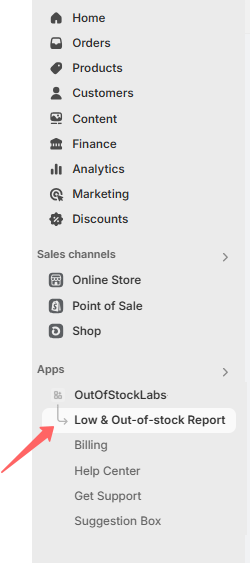
This will take you to the Inventory Page, where you can view stock status.
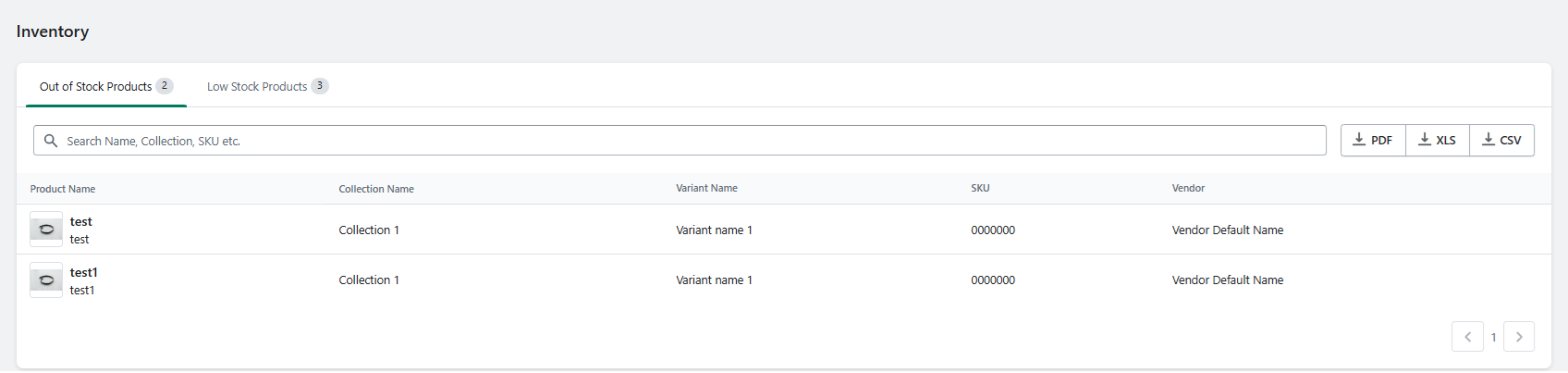
2. View Out-of-Stock and Low Stock Products
The Inventory Page has two tabs:
Out-of-Stock Products – Lists all items that are currently out of stock or have zero or negative inventory.
Low Stock Products – Displays items that have reached the low-stock threshold you’ve set, with a minimum stock value of 1.
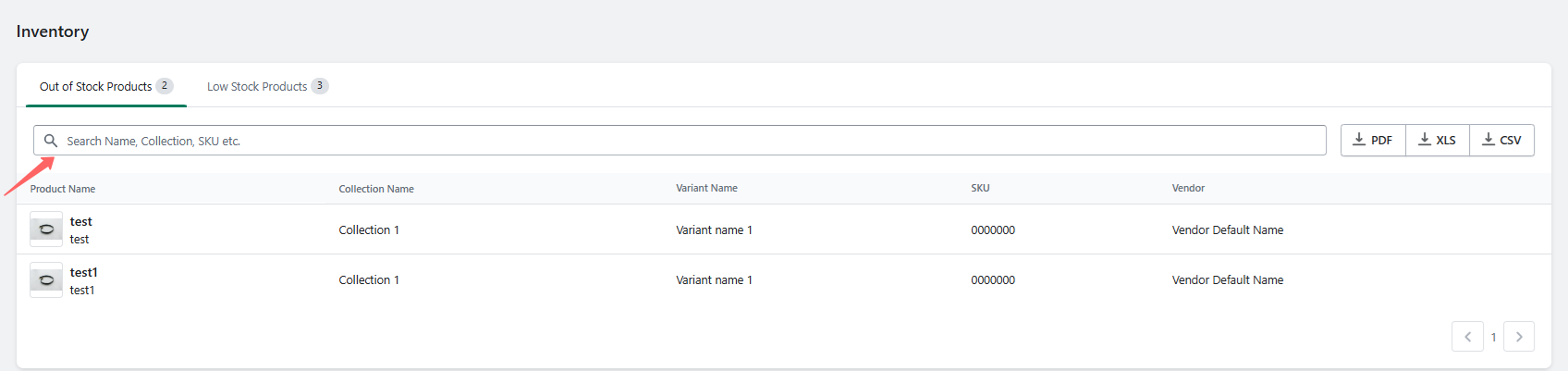
Use the search bar to quickly find specific products.
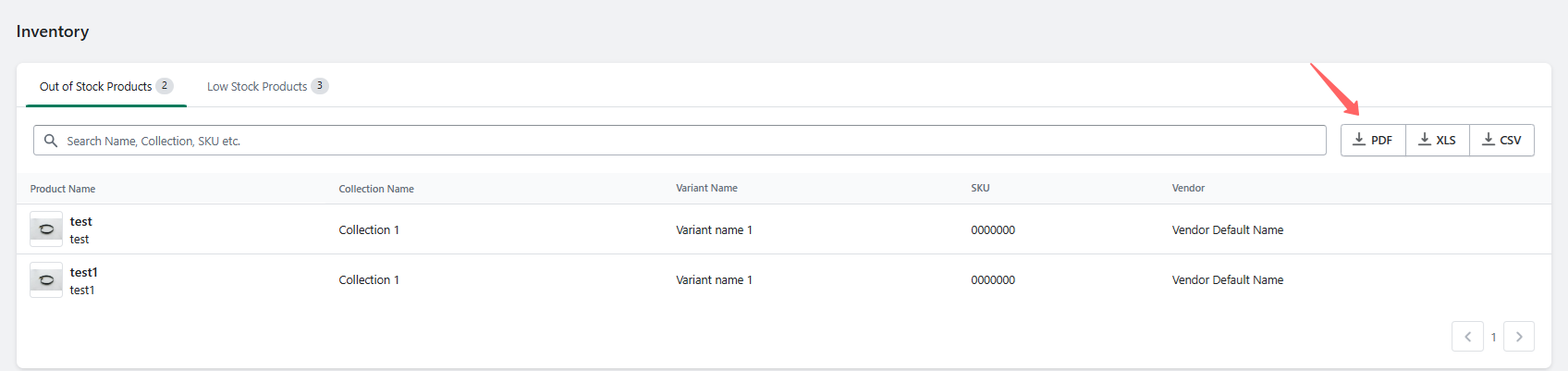
3. Download Stock Reports
You can export your stock data by clicking the download button.
Reports are available in PDF, CSV, and XLS formats.
This feature allows you to efficiently monitor and manage your inventory to prevent stock issues.