
CHOOSING THE TEMPLATE
Step 1. In your OSL Dashboard, click the ‘Create New Report’ button.

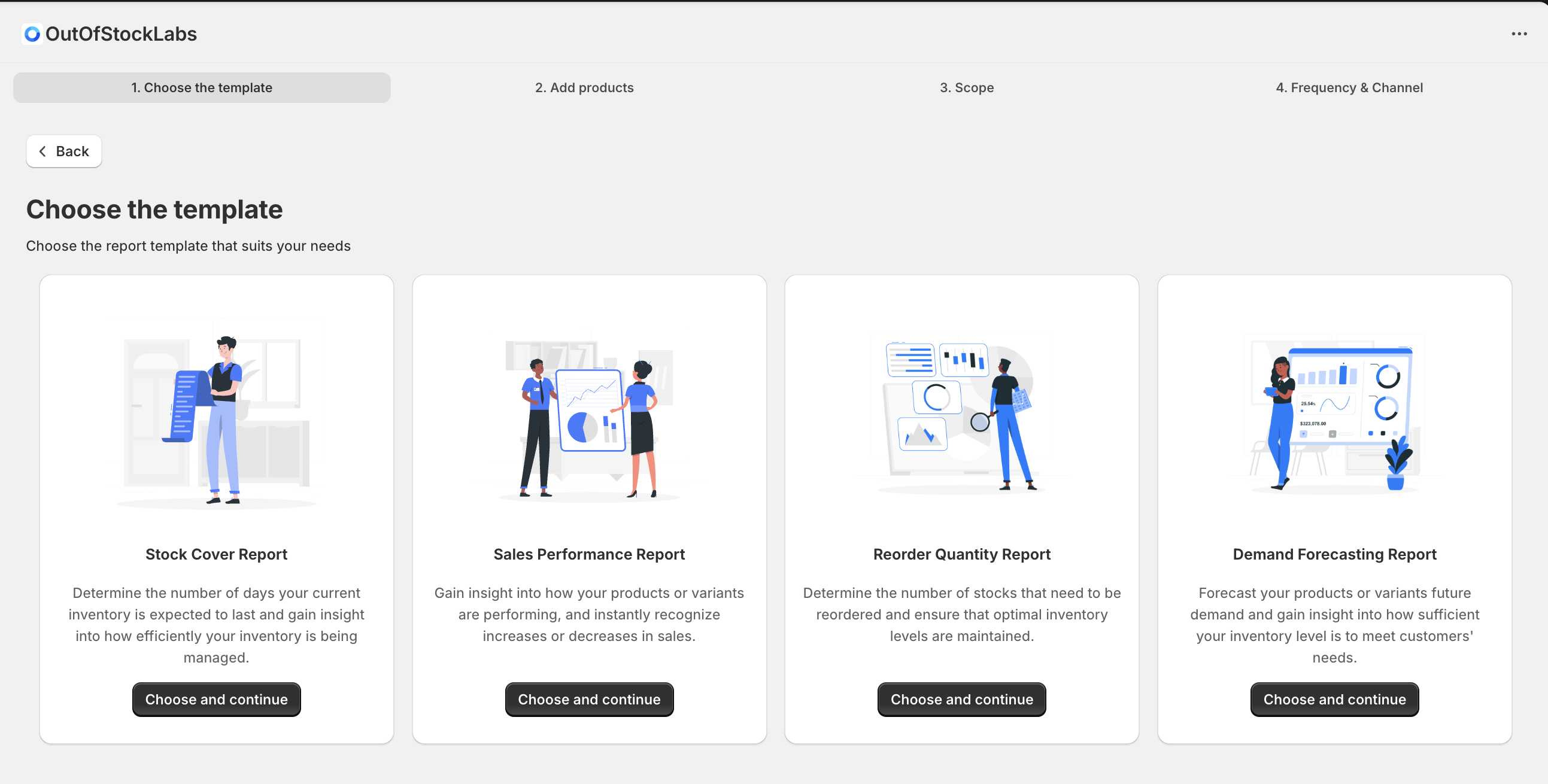
Step 2: Select ‘Stock Cover Report’
From the list of available report types, select Reorder Quantity Report and click Choose and Continue.
This step ensures you are generating the correct report focused on product and variant performance. The Reorder Quantity Report provides valuable insight into how much inventory you need to replenish to meet future demand. Use it to determine optimal reorder quantities, prevent stock shortages, and maintain balanced inventory levels across your store locations.
👉 By selecting this report type, you’ll gain a clear understanding of how much stock to reorder and when. The Reorder Quantity Report calculates the recommended replenishment quantities based on demand and current inventory, helping you restock with confidence and avoid over- or under-ordering.
Step 3: Enter a Report Name
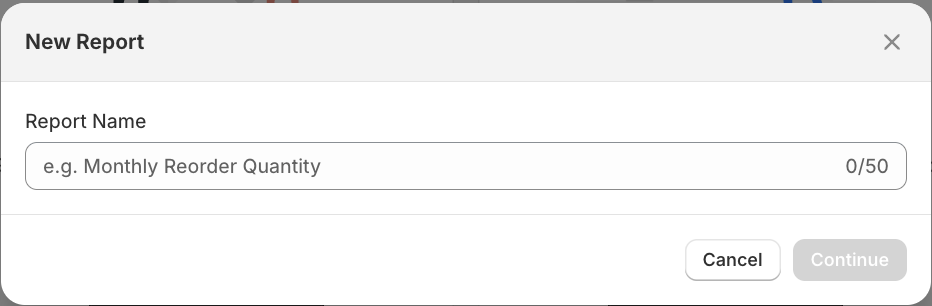
In this step, you will define the basic detail for your Reorder Quantity Report:
Report Name – Give your report a clear and descriptive name. This helps you identify and manage reports later. You can use alphanumeric and special characters, up to a maximum of 50 characters.
👉 This step ensures your report is easy to identify.
ADD PRODUCTS
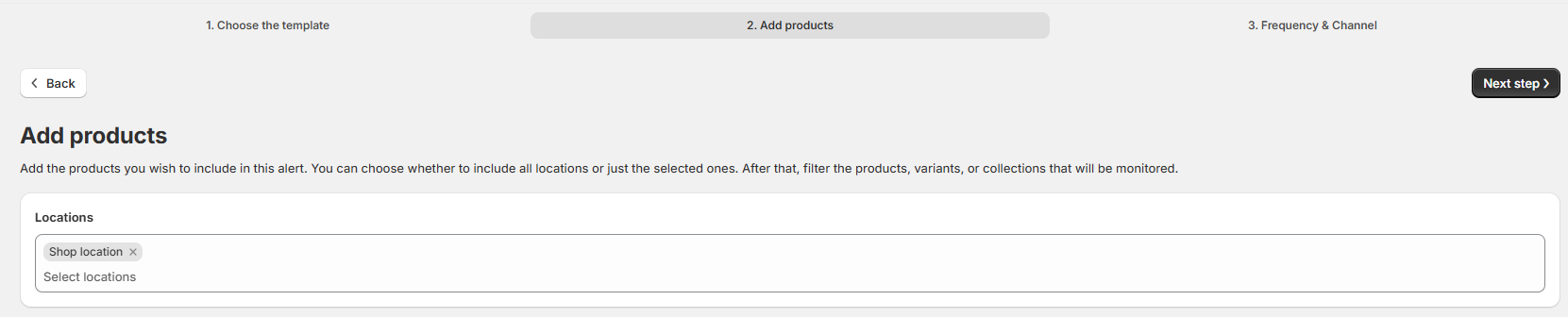
Step 4: Select Location
In this step, you will choose the store location from which you want to pull product data. This ensures that the Sales Performance Report reflects inventory and sales specific to that location.
Once a location is selected, you can add the products you want to include in the report. The system will automatically filter and display products based on the chosen location, making it easier to manage if you have multiple stores or a large product catalog.
This step is especially useful for Shopify admins, owners, or users managing several products across different locations, as it helps narrow down the selection to only what’s relevant.
Step 5: Add Products
In this step, you’ll decide which products to include in your Sales Performance Report. You can either add All Products or choose Specific Products.

Option 1: Add Specific Products
You can add specific products in two ways: Add From List or Add Using Filters.
A. Add from List
Select Specific Products → Add from List.
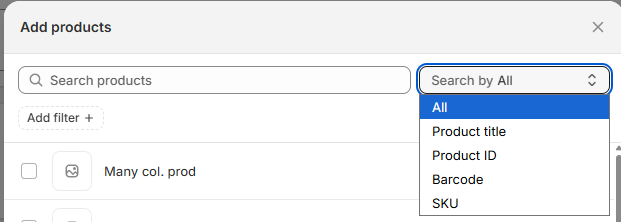
A modal will open showing all products available in your selected location.
Use the search bar to find products by (By default, search runs across all fields.):
Product Title
Product ID
Barcode
SKU
Use the filters panel to narrow down the list by:
Category
Collection
Product Type
Tags
Vendor
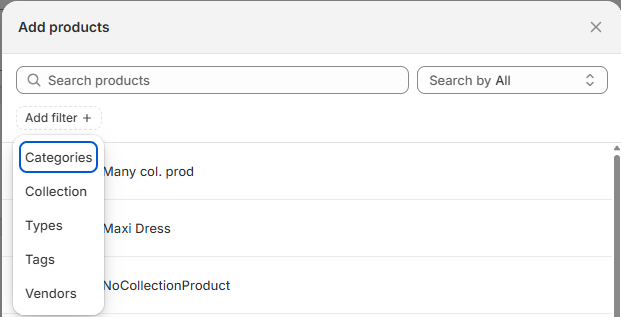
Select one or more products from the list.
Click Add to confirm your selection.
B. Add Using Filters
Select Specific Products → Add using Filters.
Define your filters using Attribute – Condition – Value format.
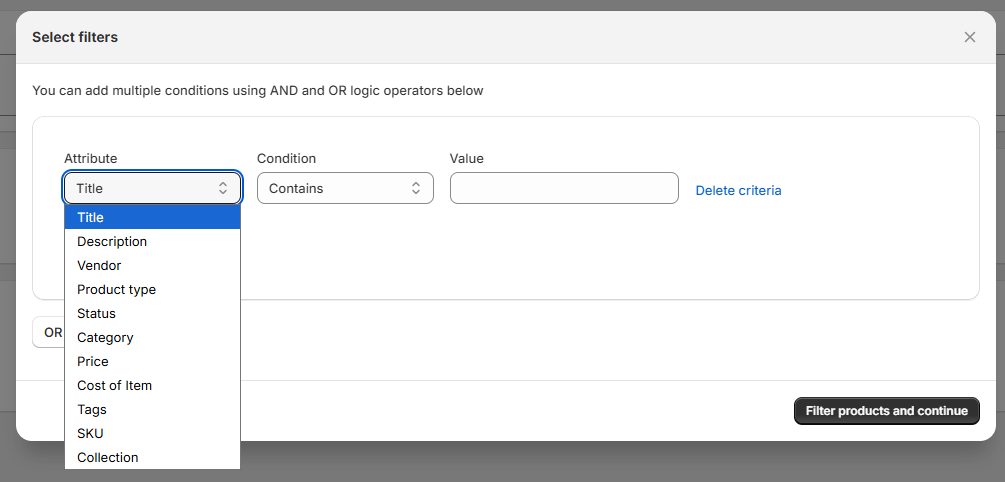
Examples:
Title → Contains → “T-shirt”
Vendor → Is → “Nike”
Price → Greater than → 100
Cost of Item → Between → 20 and 50
SKU → Doesn’t contain → “TEST”
→ You can set up multiple conditions and choose whether they should be applied with AND or OR logic.
→ Once your filters are set, the system will automatically pull all products that match your conditions.
Option 2: Add All Products
Select All Products.
All items from your chosen location will automatically be included in the report.
Use this option if you want to analyze your entire product catalog without filtering.
✅ Tips:
Choose All Products if you want a broad overview of sales performance across your store.
Choose Specific Products if you need a focused report on certain items, categories, or conditions.
Once you’ve finished selecting products, you can review them in the table displayed at the bottom of the page. This table includes key details such as Product Name, Status, Vendor, Product Type, and Stock Quantity.
If you need to make adjustments, you can:
Remove individual products by clicking the trash icon on the right-side.
Use Clear All Products to reset the list and remove all selected items at once.
Add option buttons will be located at the upper-right side of the table list.
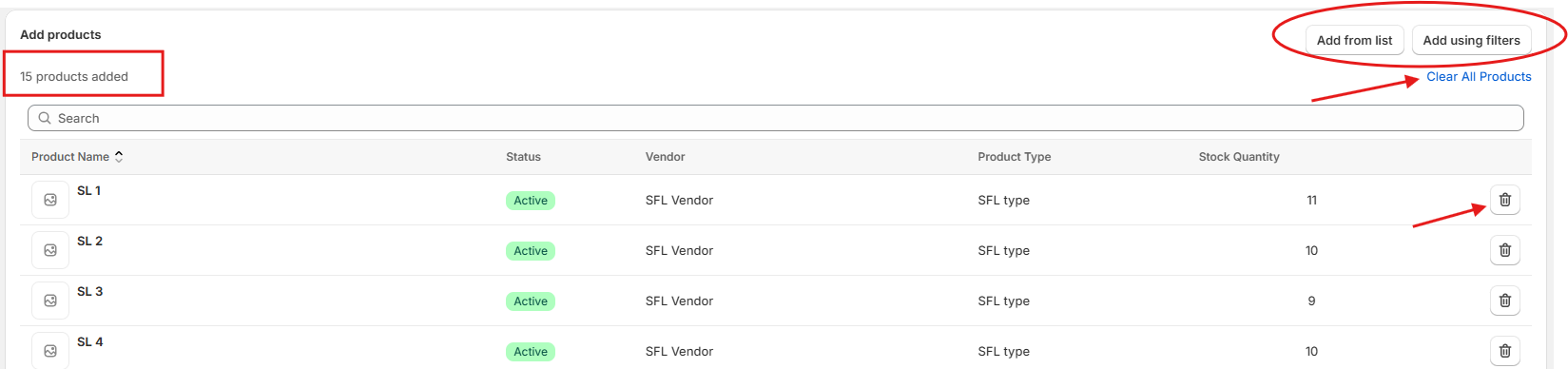
Once done with Location and Product Selection, click Next Step.

SCOPE
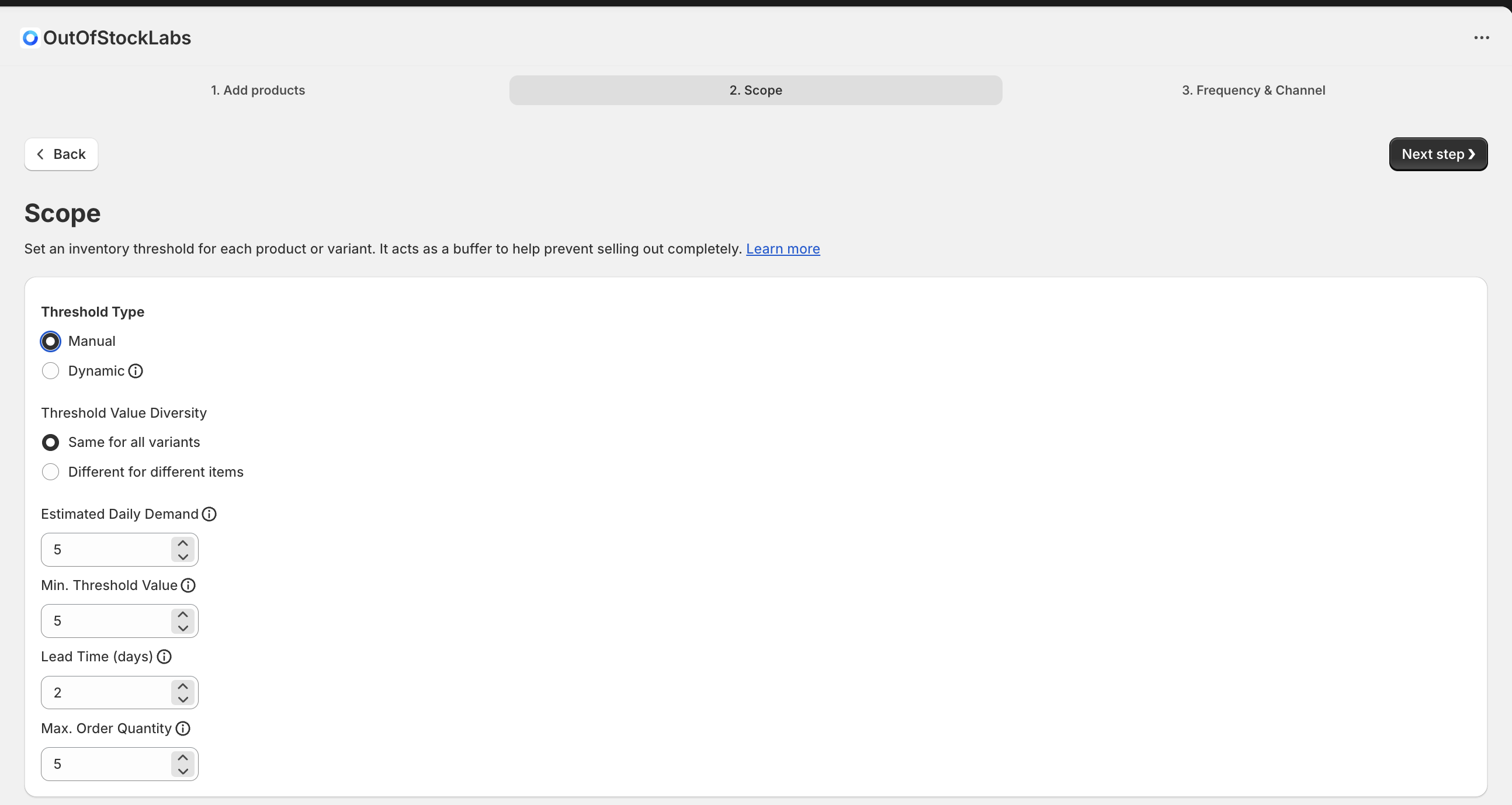
Step 6: Configure Inventory Threshold and Reorder Quantity
This step allows you to define inventory buffers and reorder limits for each product or variant. These settings help prevent stockouts while keeping reorder quantities aligned with demand and supplier constraints.
Threshold Type
Choose how the threshold value is determined:
Manual
Threshold values are explicitly defined by the user
Suitable when you want full control over buffer levels
Values remain fixed until manually updated
Dynamic
Threshold values are calculated automatically
Uses historical demand data and lead time
Ideal for products with changing sales patterns
Threshold Value Diversity
Choose how threshold values apply across variants:
Same for all variants
A single threshold value is applied to every variant under the product.Different for different items
Thresholds are configured individually per product or variant.
Manual Threshold Parameters
When Manual is selected, configure the following:
Estimated Daily Demand
The expected average number of units sold per day.Minimum Threshold Value
The minimum inventory buffer to keep on hand.Lead Time (days)
Number of days it takes for suppliers to deliver new stock after an order is placed.Max Order Quantity
Defines the maximum number of units that can be reordered in a single restock.
Dynamic Threshold Configuration
When Dynamic is selected, thresholds are calculated automatically based on demand trends.
→ Base Period
Select the historical period used to calculate average daily sales:
Last 7 Days
Last 14 Days
Last 30 Days
Last 60 Days
Year-to-Date (YTD)
Custom
Only completed periods are included in the calculation.
FREQUENCY & CHANNEL
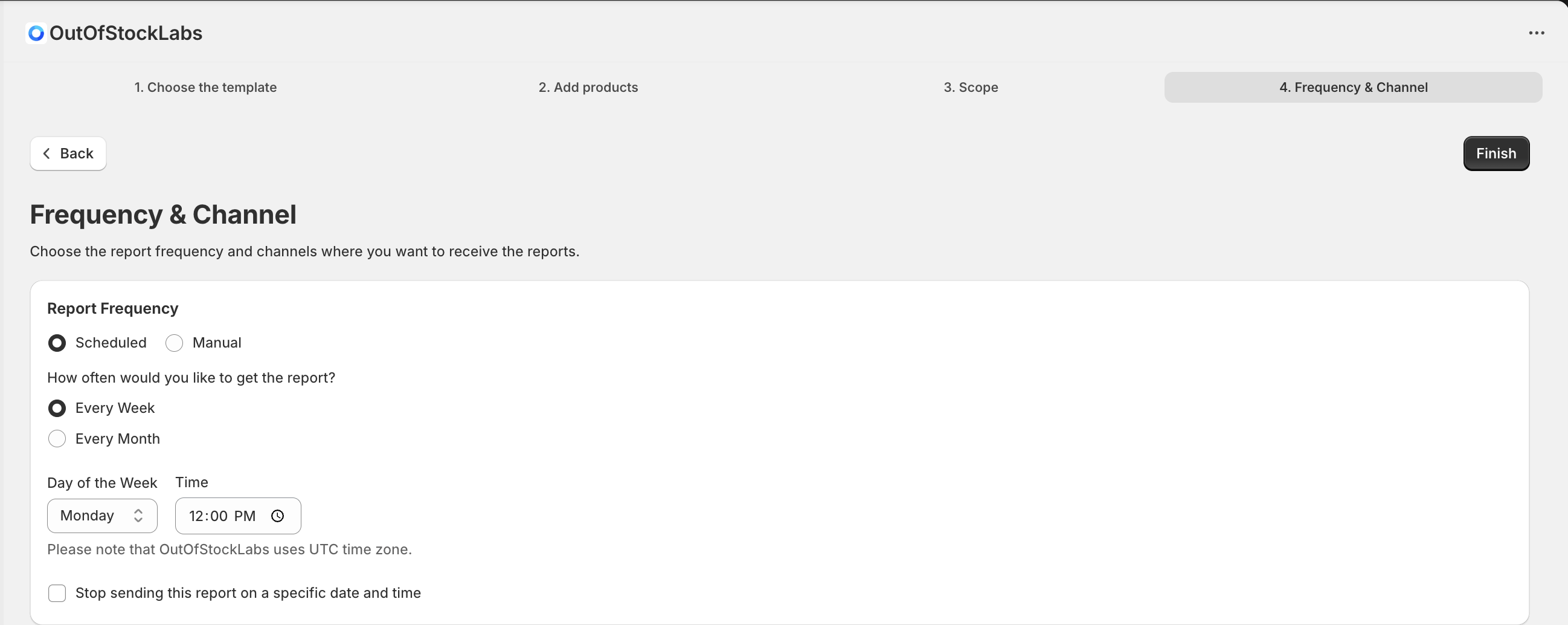
Step 7: Select Report Frequency and Delivery Channels
Choose how often you want to receive the Demand Forecasting Report and where it should be delivered
📌 This step is optional if you only want to generate the report manually, but required for scheduled reports.
Frequency & Channel Settings
Report Frequency
You can choose between:
Scheduled – The report is automatically generated and sent on a recurring basis
Manual – The report is generated only when you run it manually
Scheduled Report Options
When Scheduled is selected, configure the following:
How often would you like to get the report?
Every Week
Every Month
Day of the Week
Select the day the report should be sent (e.g. Monday).
Time
Choose the time the report will be delivered.
⏰ Please note: OutOfStockLabs uses the UTC time zone for all scheduled reports.
Optional Settings
Stop sending this report on a specific date and time
Set an end date if you want the schedule to automatically stop.
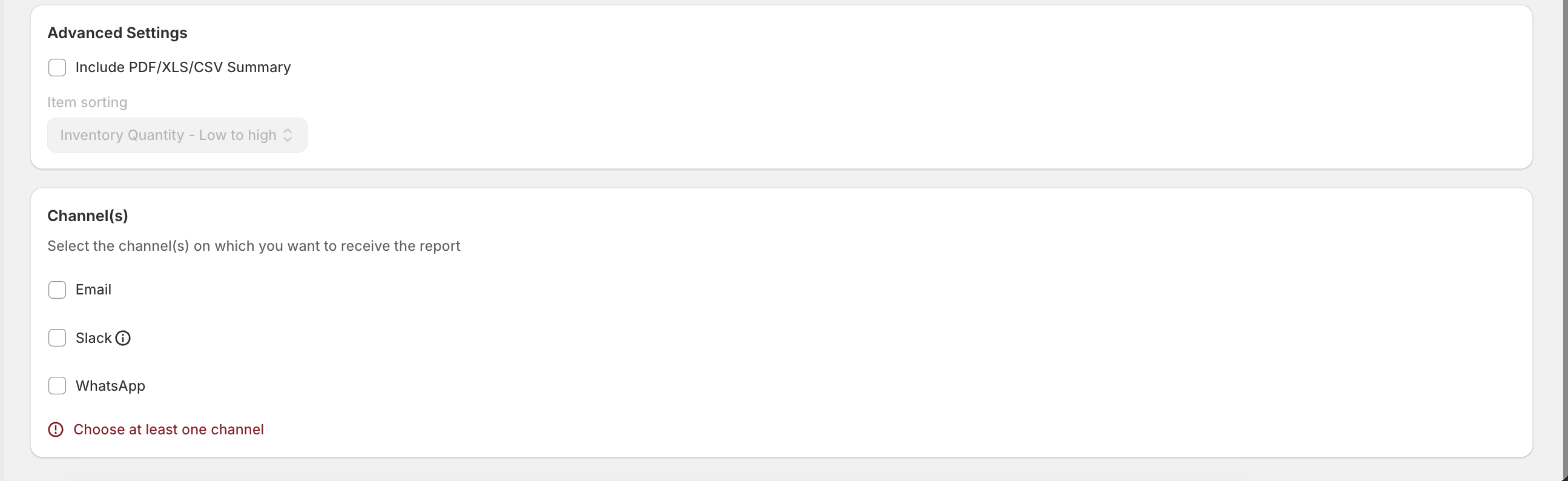
Advanced Settings
Include PDF / XLS / CSV summary
Item sorting (e.g. Inventory Quantity – Low to high)
Delivery Channels
Select where you want to receive the report. You must choose at least one channel.
Available channels:
Email
Slack
WhatsApp
Finish and Save
Once all settings are complete, click Finish to save your report configuration. Scheduled reports will be sent automatically based on your selected frequency, while manual reports can be generated anytime.