
📥 How to Download a Generated Report
After generating a report in OutofStockLabs, you can easily download it in your preferred file format for record-keeping, analysis, or sharing with your team.
1. Download from the Dashboard
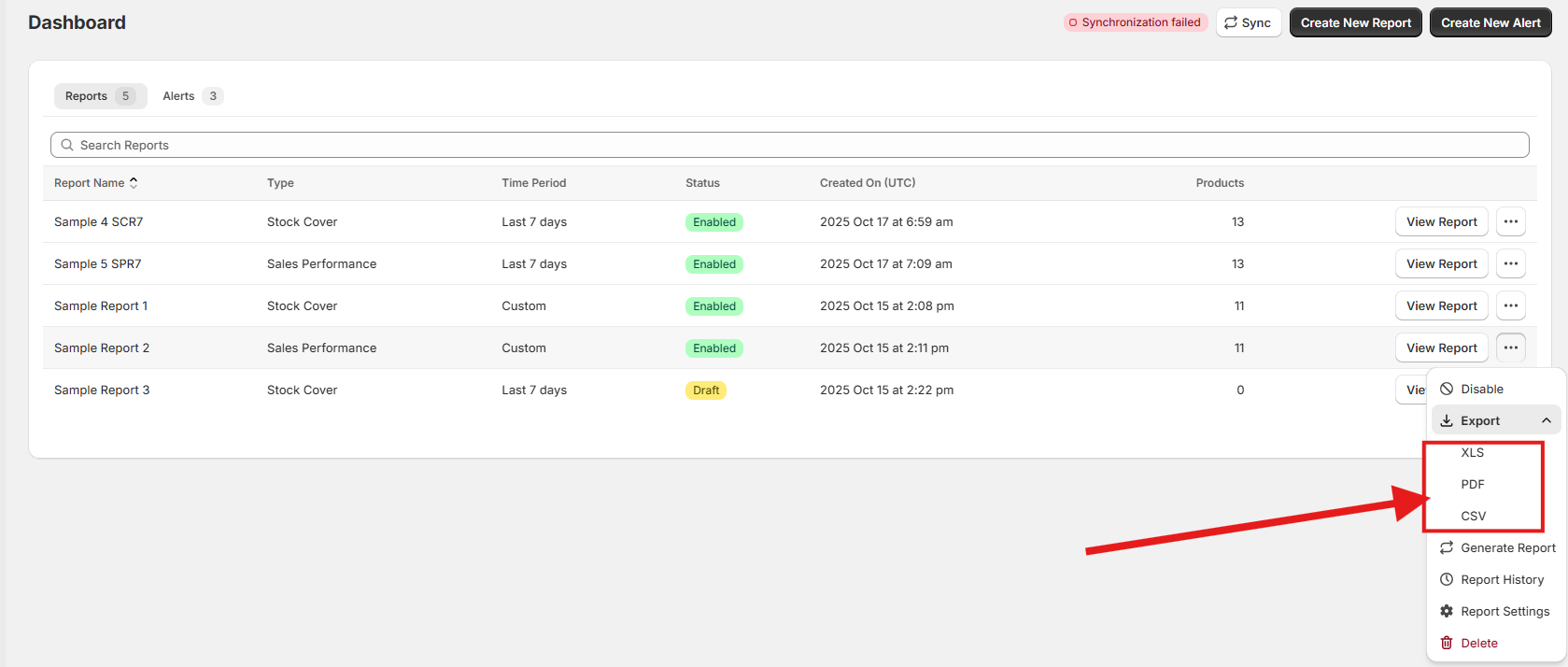
Go to your Dashboard and locate the report you want to download.
Click the Action List (⋯) button next to the report name.
Select the Export option.
Choose your desired file format — XLS, PDF, or CSV.
Your selected report will begin downloading immediately.
2. Download from the View Report Page
From the Dashboard, click on the report name to open the View Report page.
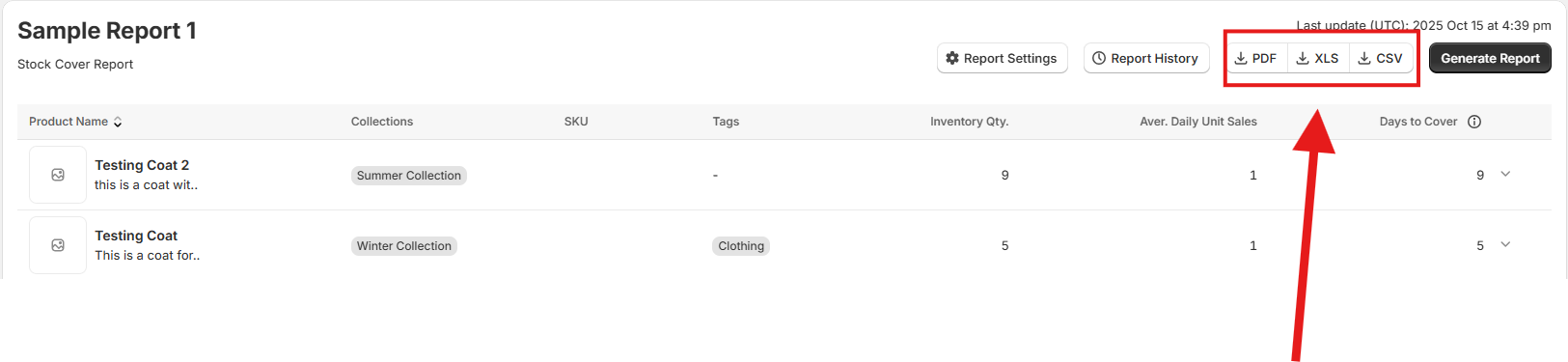
On the top-right corner of the page, you’ll see buttons for different file formats:
Download PDF
Download XLS
Download CSV
Click the button that matches the format you prefer.
Your report will be saved directly to your device, ready for review, offline use, or sharing with others.
💡 Tip: Downloading in XLS or CSV format makes it easier to analyze your data in spreadsheet tools, while PDF is best for presenting or archiving reports.